

在 Shopify 主题在线代码编辑器和你的电脑本地系统之间双向同步主题文件。
Shopify 主题文件同步助手 是博主 Shopify 万能钥匙 制作和分享的一款免费的 Chrome 浏览器扩展,提供 Shopify 在线主题编辑器与本地文件系统之间的双向实时同步功能。
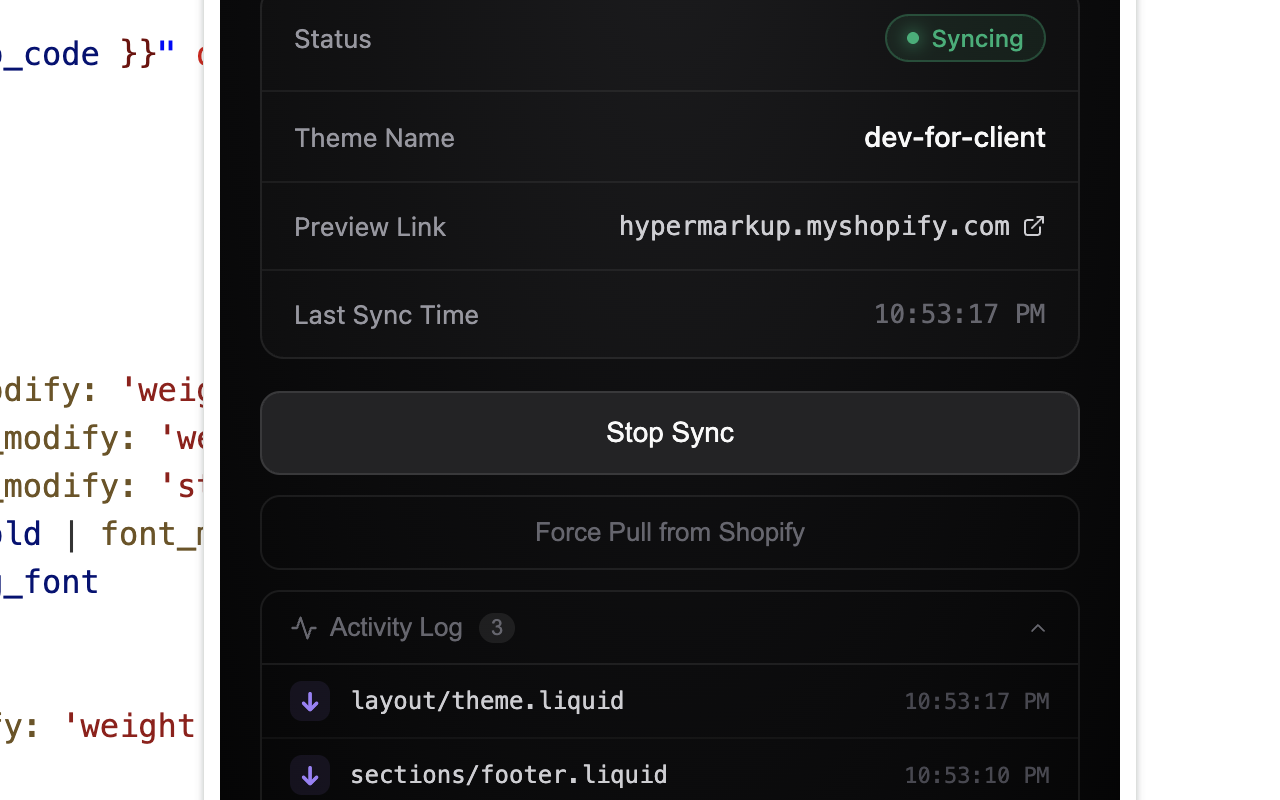
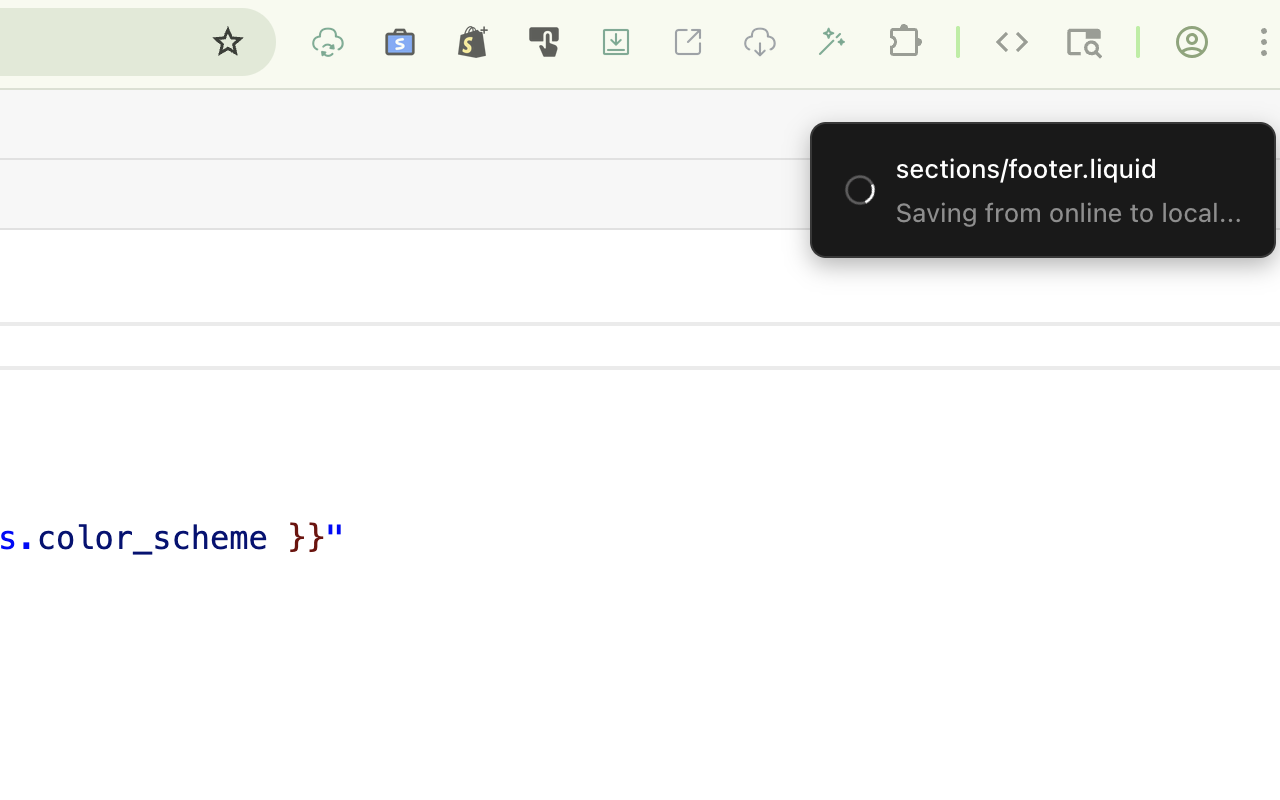
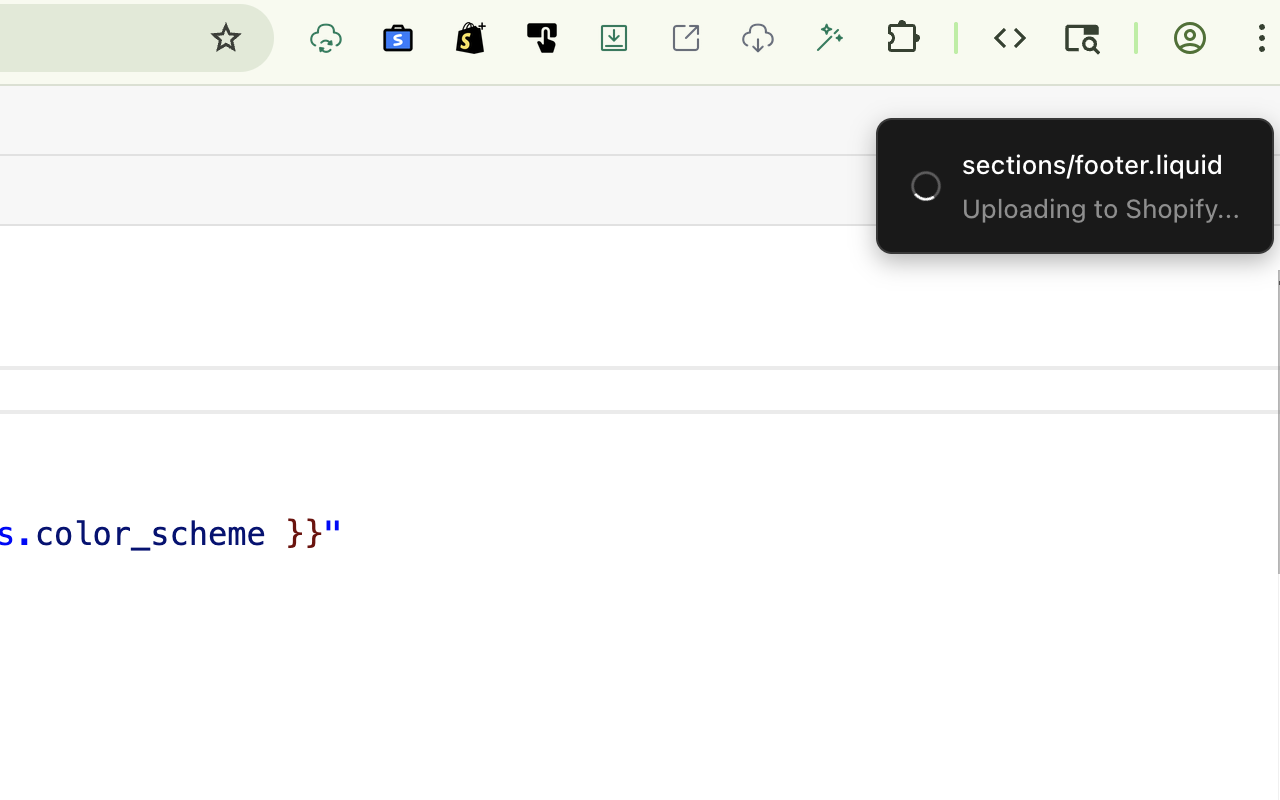
温馨提示:在修改 Shopify 主题文件进行双向同步时,请确保至少打开 所选同步主题对应的 Shopify 主题装修编辑器(推荐)或在线编辑代码界面中的一个,以便确认需要同步的主题。同步成功时你将会在页面右上角和插件弹窗中的活动日志里看到记录。
v4 版本新增了一些自定义设置项并将设置面板整合到了 Popup 弹出窗口内。同时在需要身份验证时弹出提示,验证成功之后自动恢复文件同步。
v3 版本新增了 退出浏览器后重新打开时 的提醒和点击按钮快速恢复功能,并实施了几十项细节优化。
有了这个工具,你无需配置 Shopify CLI 即可进行 Shopify 主题文件的双向修改同步,将主题文件同步到本地不仅可以通过 git 进行版本记录、使用 AI 工具进行代码编辑和功能添加,还可以使用本地 VS Code 软件中的各种快捷键和插件等。特别适合 Shopify 从业人员如商家和店铺运营、开发者,以及自由职业者。
核心功能:
- Shopify → 本地同步:当您在 Shopify 后台主题编辑器中保存文件时,扩展会自动将更改写入本地文件夹,无需手动下载。
- 本地 → Shopify 同步:当您在本地代码编辑器(如 VS Code)中修改主题文件后,扩展会自动检测文件变化并上传到 Shopify 主题,无需手动上传。
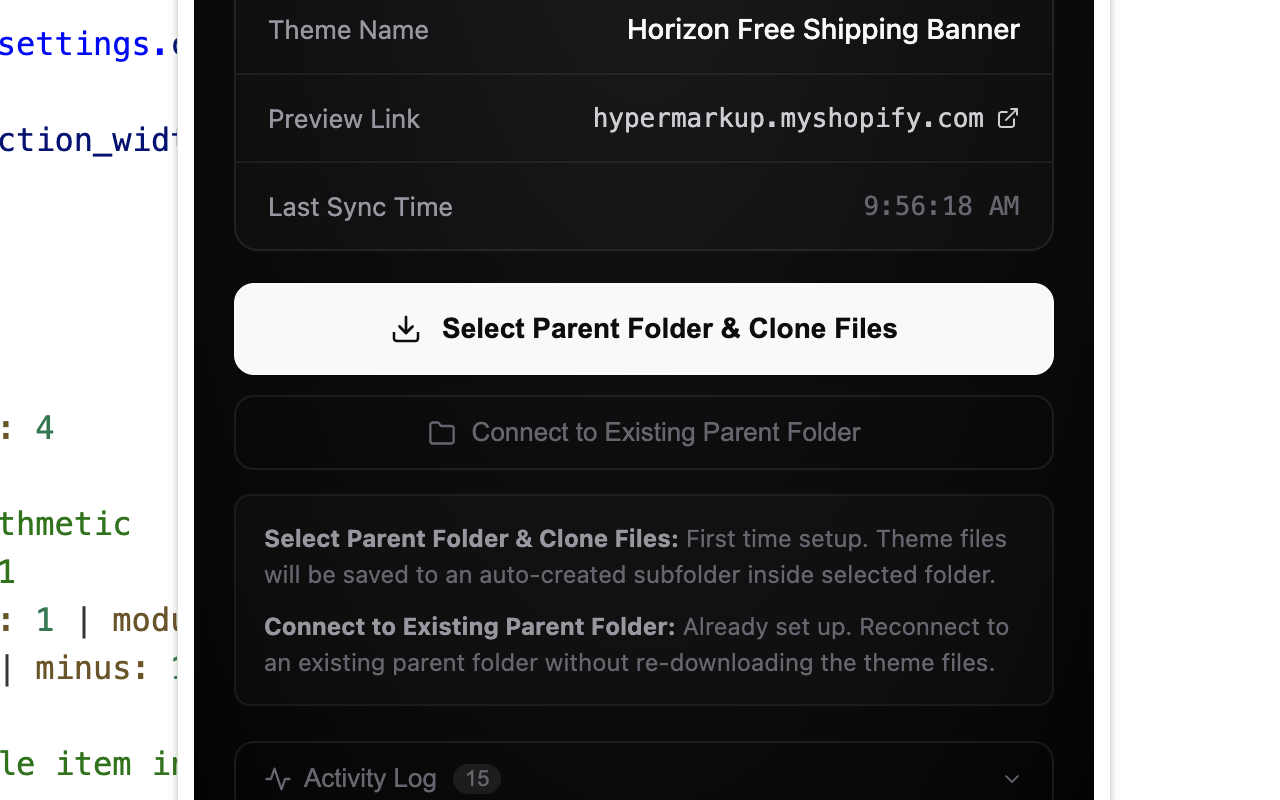
- 一键克隆:首次使用时,选择一个本地文件夹,扩展会自动将当前 Shopify 主题的所有文件下载到该文件夹。
- 多主题支持:可同时管理多个 Shopify 主题的同步配置,切换主题时自动恢复对应的同步状态。
- 实时状态显示:在 Shopify 编辑器页面右下角显示同步状态指示器,弹窗中也展示详细的同步信息。
- 强制拉取:支持从 Shopify 强制拉取最新主题文件覆盖本地,确保本地文件与线上一致。
使用方法:
1. 安装扩展后,打开 Shopify 后台并进入任意主题的代码编辑页面。
2. 点击扩展图标,在弹窗中点击「Select Parent Folder & Clone Files」选择本地同步文件夹。
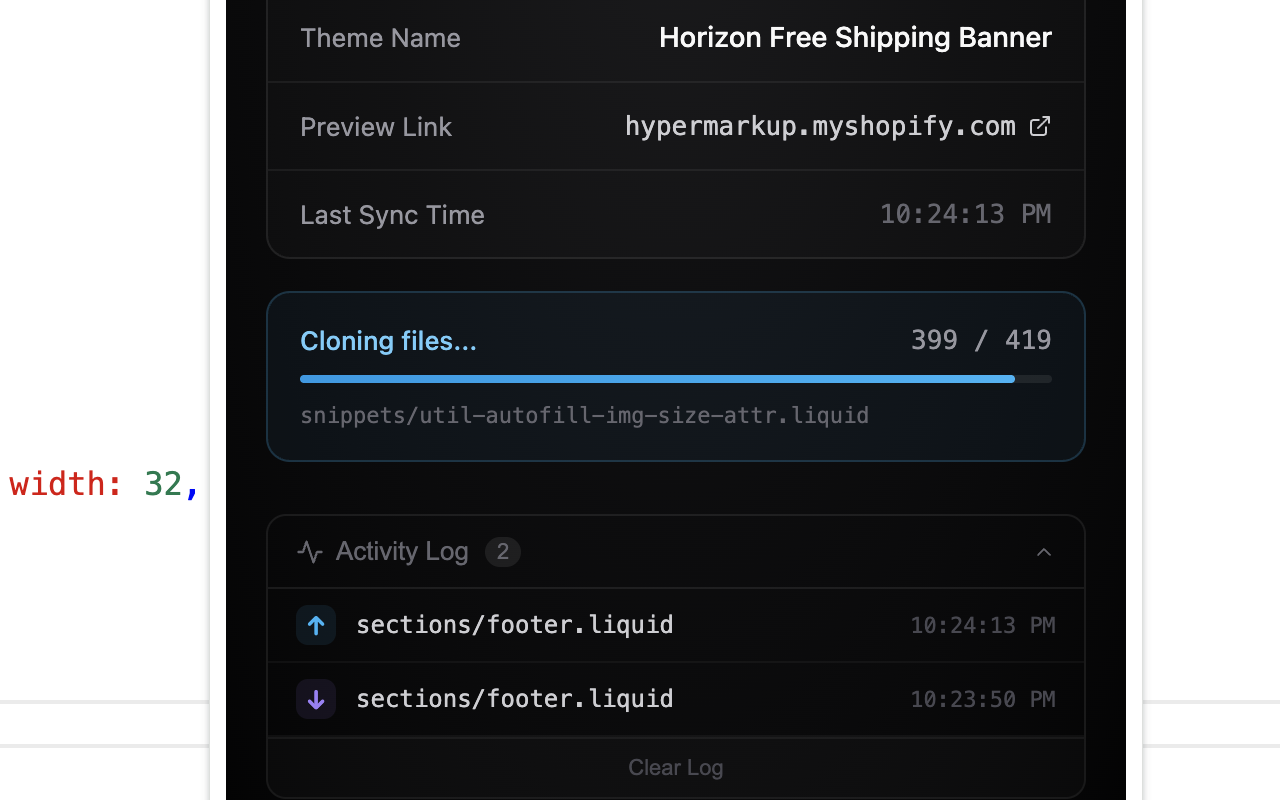
3. 扩展将自动克隆当前主题文件到本地,完成后进入双向同步模式。
4. 在 Shopify 编辑器中保存的文件会自动同步到本地;在本地修改的文件会自动上传到 Shopify。
本扩展完全免费,无需注册、登录或订阅,所有功能无限制使用。
动态图标指示:
图标颜色会随同步状态自动变化,共有五种状态:
当你访问的不是 Shopify 主题页面时,图标显示为灰色,表示当前处于非活跃状态;
一旦进入 Shopify 页面但尚未选择同步文件夹,图标切换为琥珀色,提示你还有配置未完成;
当系统开始克隆主题文件时,图标变为蓝色,代表正在进行克隆;
成功选择同步文件夹并开始双向同步后,图标变为 Shopify 标志性的绿色,表明一切运转正常;
如果同步过程中发生错误,图标立即变红,提醒你需要介入处理。
图标颜色会自动刷新,无需任何额外操作。
Shopify Theme Files Sync Helper is a Free Chrome browser extension that provides bidirectional real-time synchronization between the Shopify Online Theme Code Editor and your Local File system.
With this tool, you can sync Shopify theme files in both directions without configuring the Shopify CLI. Keeping a local copy of your theme files lets you track changes with Git, edit code and add features using AI tools, and take full advantage of VS Code shortcuts and extensions. It's especially well-suited for anyone working with Shopify — merchants, store operators, developers, and freelancers alike.
Key Features:
[ Shopify → Local Sync ]
When you save a file in the Shopify Code Editor, the extension automatically writes the changes to your local folder — no manual download needed.
[ Local → Shopify Sync ]
When you modify a theme file in your local code editor (e.g., VS Code), the extension automatically detects the changes and uploads them to your Shopify theme — no manual upload needed.
[ One-Click Clone ]
On first use, simply select a local folder and the extension will automatically download all files from the current Shopify theme into that folder.
[ Multi-Theme Support ]
Manage sync configurations for multiple Shopify themes simultaneously. Switching themes automatically restores the corresponding sync state.
[ Real-Time Status Display ]
A sync status indicator is shown at the bottom-right of the Shopify editor page, with detailed sync information also available in the popup.
[ Force Pull ]
Force pull the latest theme files from Shopify to overwrite local files, ensuring your local copy matches the live version.
How to Use:
1. After installing the extension, open the Shopify admin and navigate to any theme's code editor page.
2. Click the extension icon and select "Select Parent Folder & Clone Files" to choose a local sync folder.
3. The extension will automatically clone the current theme files to your local folder, then enter bidirectional sync mode.
4. Files saved in the Shopify editor will automatically sync to your local folder; files modified locally will automatically upload to Shopify.
This extension is completely free — no registration, login, or subscription required. All features are available without limits.
Dynamic Icon Colors:
The icon color updates automatically to reflect the current sync state across five distinct modes:
when you're on a page that isn't a Shopify theme editor, it stays gray to signal that the extension is inactive;
the moment you land on a Shopify page without a sync folder selected, it turns amber as an idle nudge that setup is still needed;
once the extension starts pulling down theme files, it switches to blue for the cloning phase;
when a sync folder is confirmed and two-way sync is live, it glows Shopify green to show everything is watching smoothly;
and if anything goes wrong during sync, it flips to red to flag an error that needs your attention.
All of this happens automatically with no manual step required.